
Have you ever come back from a fantastic drone flight and thought about how to transfer drone photos and videos to a computer or mobile device to be able to enjoy those wonderful sunrises or examine your survey results or edit your film?
You’re not the only one who has thought about that.
All drone pilots face such challenges sooner or later. The excitement comes during the flight itself, when you fly the drone, take impressive photos, record 4K videos, and land with a big smile. However, the main part starts after the flight is completed.
Table of Contents
Never Lose Your Drone Footage Again!
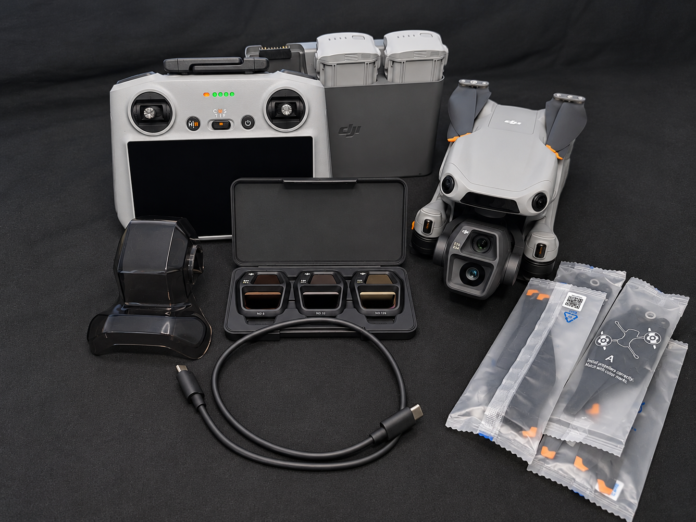
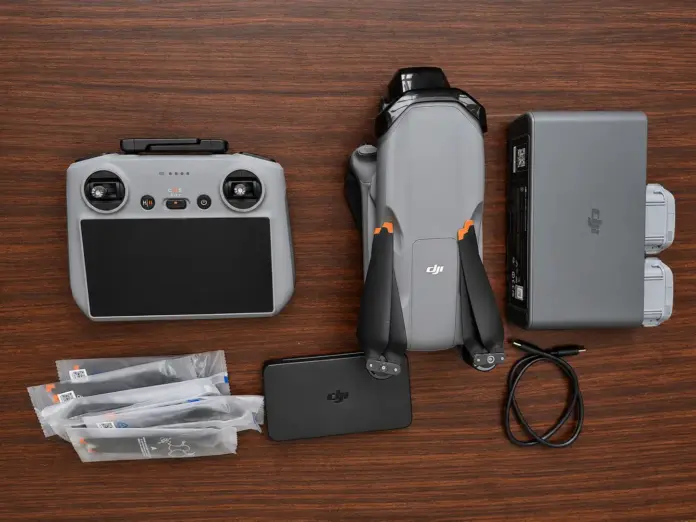
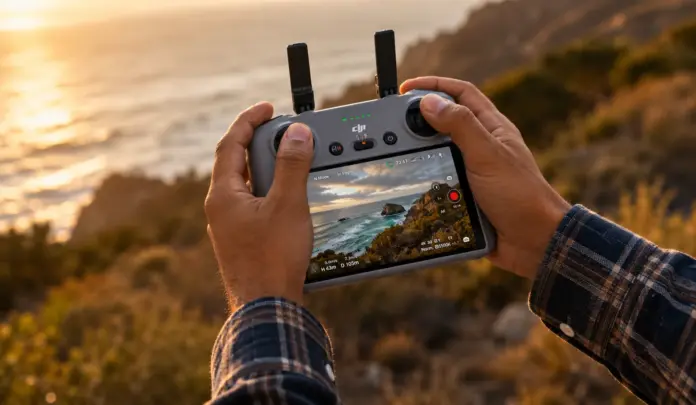
All these wonderful memories and important project files stay in your drone or DJI RC (RC N3 needs a smartphone to be connected) remote control until you transfer drone photos and videos. Your files may get lost due to damage to the memory card or loss of the remote control.
The good news is that to transfer drone photos and videos from your drone is much simpler than most of you think.
I will show all possible ways for you in this article in an easy way, just as I tell my fellow drone pilots right after their flight.
Why Transfer Drone Photos and Videos?
Consider your drone to be nothing more than an airborne camera.
When the flight is done, the work does not end there for professional drone photographers. They will always take out the important files from within the drone.
Benefits of file transfer include:
- Creating an extra backup for the next mission.
- More space for your next flight.
- Editing videos on a bigger screen.
- Sharing photographs with clients.
- Avoiding any data loss.
Just take a few minutes, and it will help save many hours of work.
5 ways to transfer drone photos and videos to phone or laptop
1. Transfer From Aircraft Using a USB-C Cable
Let’s say you have just completed the mission of aerial mapping. Now, your laptop is in front of you, and there is some charge left in the battery of the drone.
There are two things that you can do. The first is to plug your drone directly into the computer.
- Just turn off your drone.
- Put the battery in if not already in place.
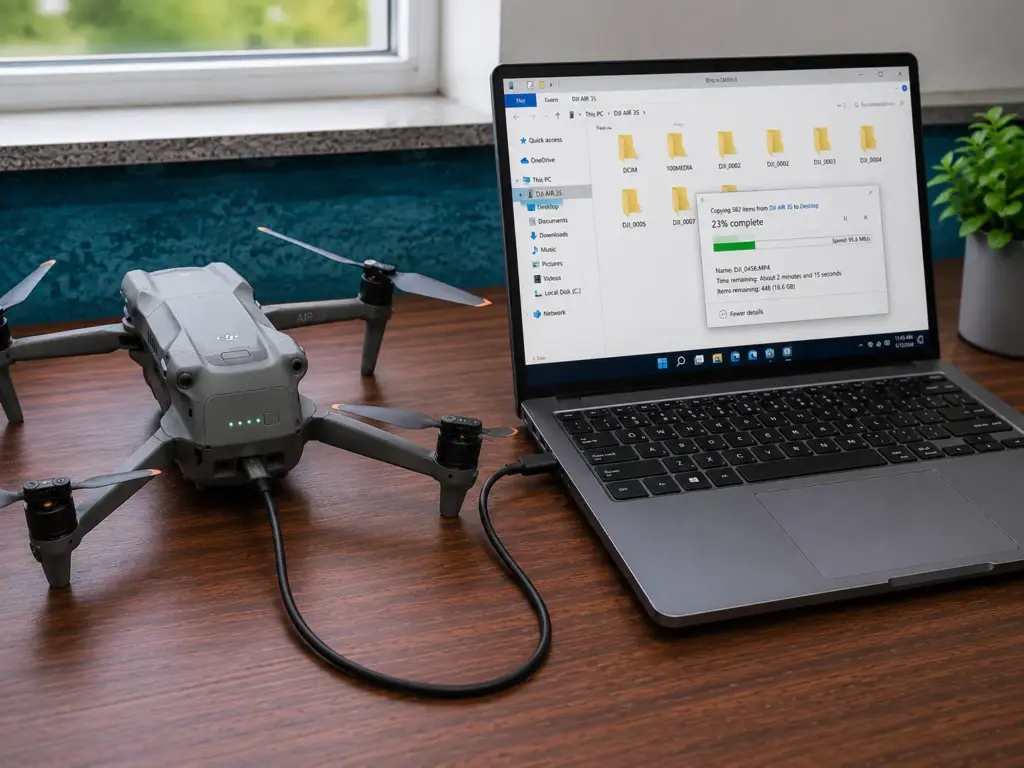
- Use a USB-C data cable, not a charging cable.
- Plug one end of it into your drone while another is plugged into your computer.
- Then, turn on the drone.
- Your computer will recognize your drone almost instantly as a USB drive.
- Navigate through the drive and find a folder called DCIM.
- This is where all the photos and videos taken by your drone are stored.
- Copy everything you need from there to a folder in your computer.
Simple and easy, just right for everyday usage.
2. Remove the SD card From the Drone
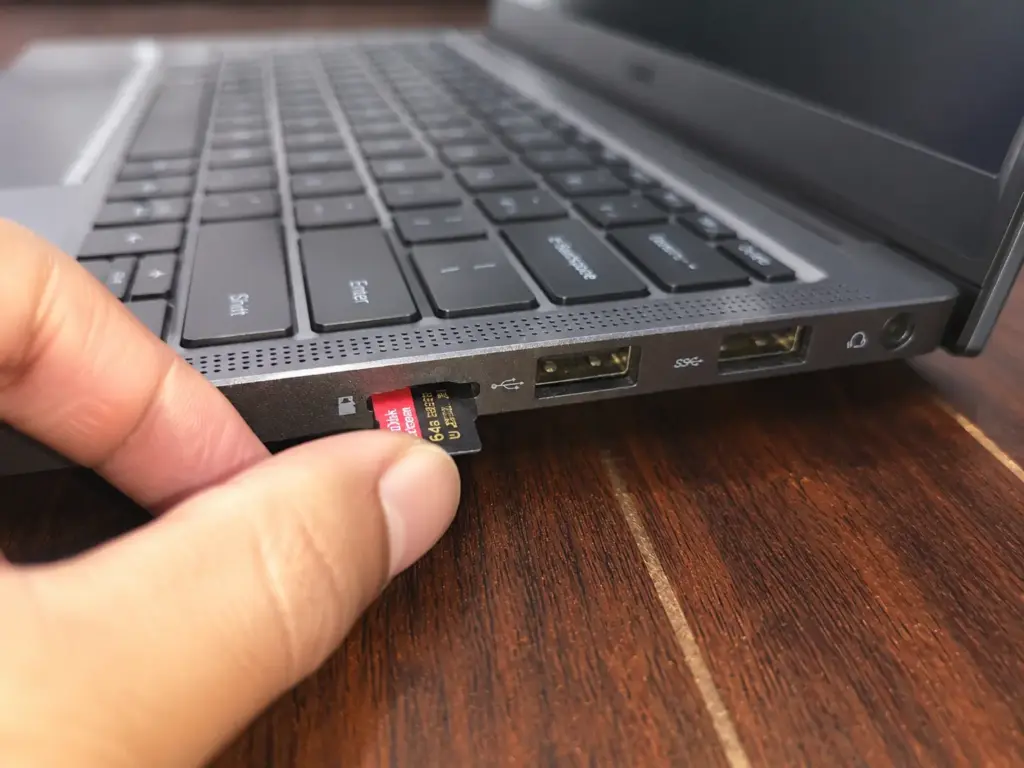
Imagine that you have been shooting in 4K resolution for an entire day. There are almost 100 GB of footage stored inside your drone. In such circumstances, removing the microSD card becomes the quickest solution.
- Turn off the drone.
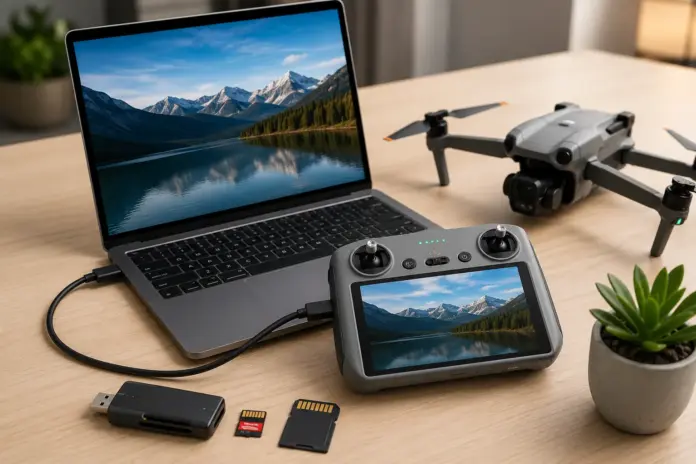
- Take out the memory card and put it into a card reader.
- Plug the card reader into your PC or mobile phone.
- Find the DCIM folder inside the SD card and copy everything that is there.
- Make sure you eject the card properly before putting it back into the drone.
Removing the microSD card provides the quickest transfer of data.
What about the DJI RC?
A lot of new drone users may be unaware that the DJI RC is capable of storing media as well.
This could include:
- Video recordings
- Photos
- Screenshots
If you have downloaded photos onto your remote control unit or have recorded your screen while flying, be sure to back up those files as well.
Notes to Consider before Starting to Copy Files on RC
Before starting any operation, please have a look at a few things first.
- Please ensure that the controller has sufficient battery.
- Do not remove any wire during copying of files.
- The most important thing is that you must not format the memory until all photos and videos have been copied.
- This will save your precious work.
3. Connecting DJI RC/RC 2 Using a USB-C Cable
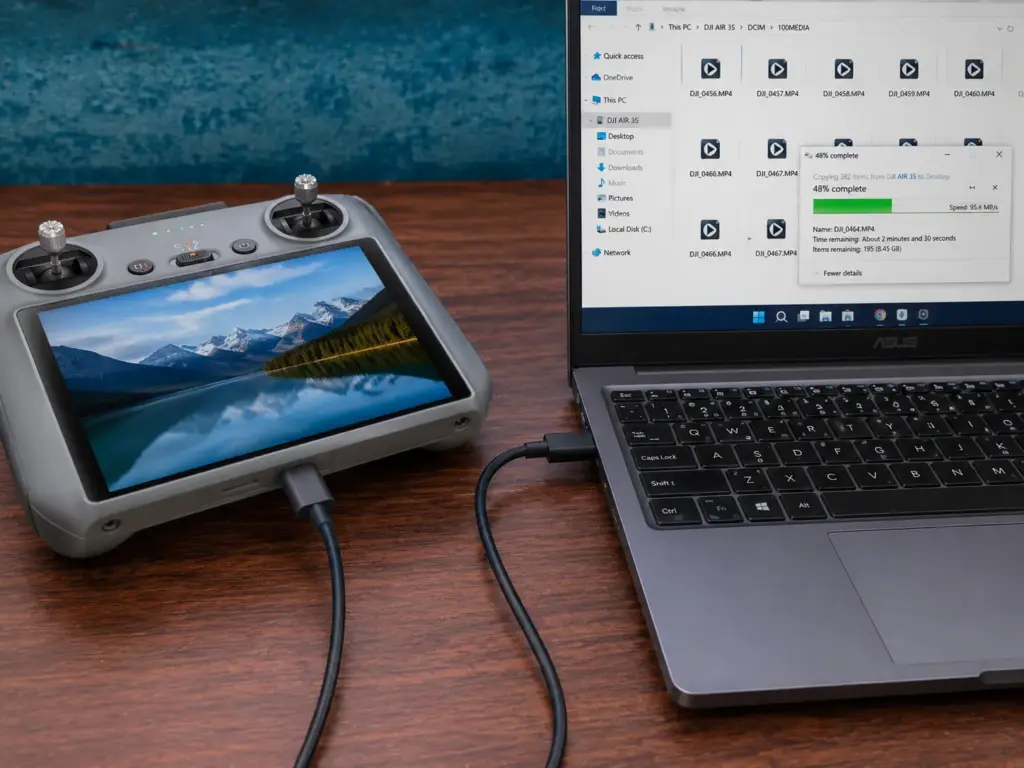
This is the method that I prefer to use myself.
- Power on the RC/RC 2.
- Connect it to your computer with a USB-C cable.
- In just a couple of minutes, the storage will be available on your computer.
- Access the folders, find your files, and copy all of them to your computer.
- When done, remove the controller from your computer properly before disconnecting it.
- Fast and easy. No additional accessories required.
4. Remove Memory Card From RC
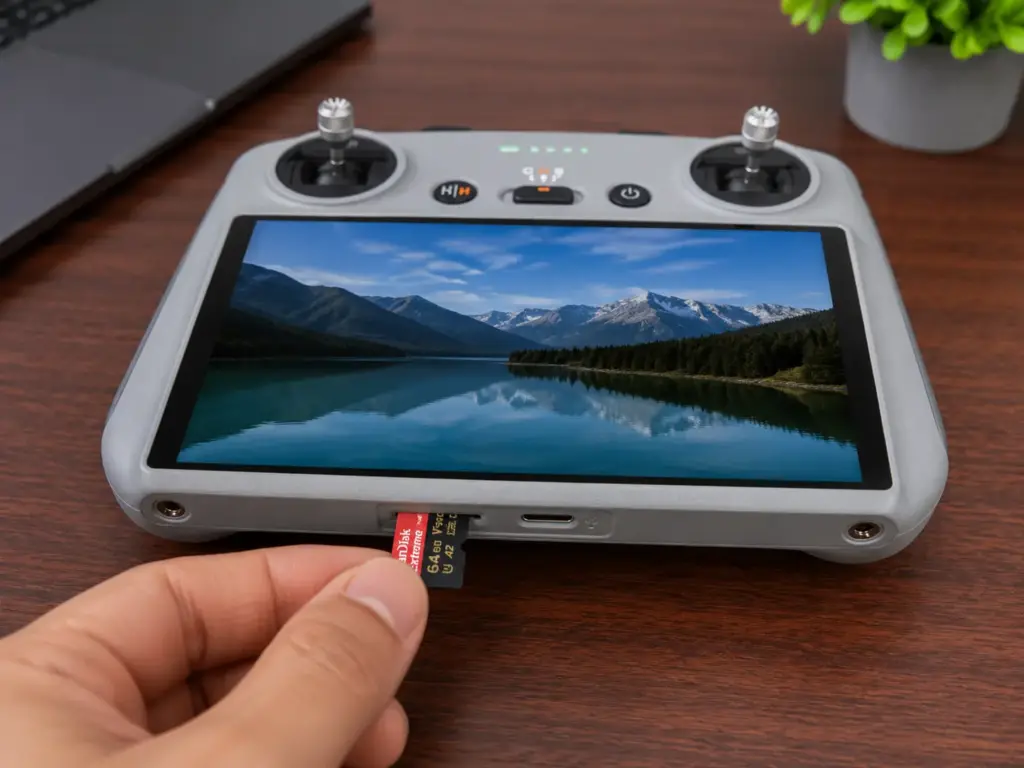
If your RC controller uses an SD card, you can easily remove it, similar to the SD card from your drone.
Plug it into an SD card reader, attach it to your computer or phone, and back up all your files.
It can be the quickest way to back up large amounts of video footage.
5. Transfer via the DJI Fly Application
Let’s say you are traveling without your laptop.
Not a problem.
- Turn on the drone and the RC 2 and start the DJI Fly application.
- Navigate to the Album tab.
- Choose the images or videos you wish to retain.
- If necessary, download the original files.
This will allow you to transfer them to your phone or even share them immediately.
Others even employ trusted WiFi file transfer applications such as AirDroid for transferring files between devices without using wires.
This is an easy way out when you’re out and about.
Is it possible to use Bluetooth?
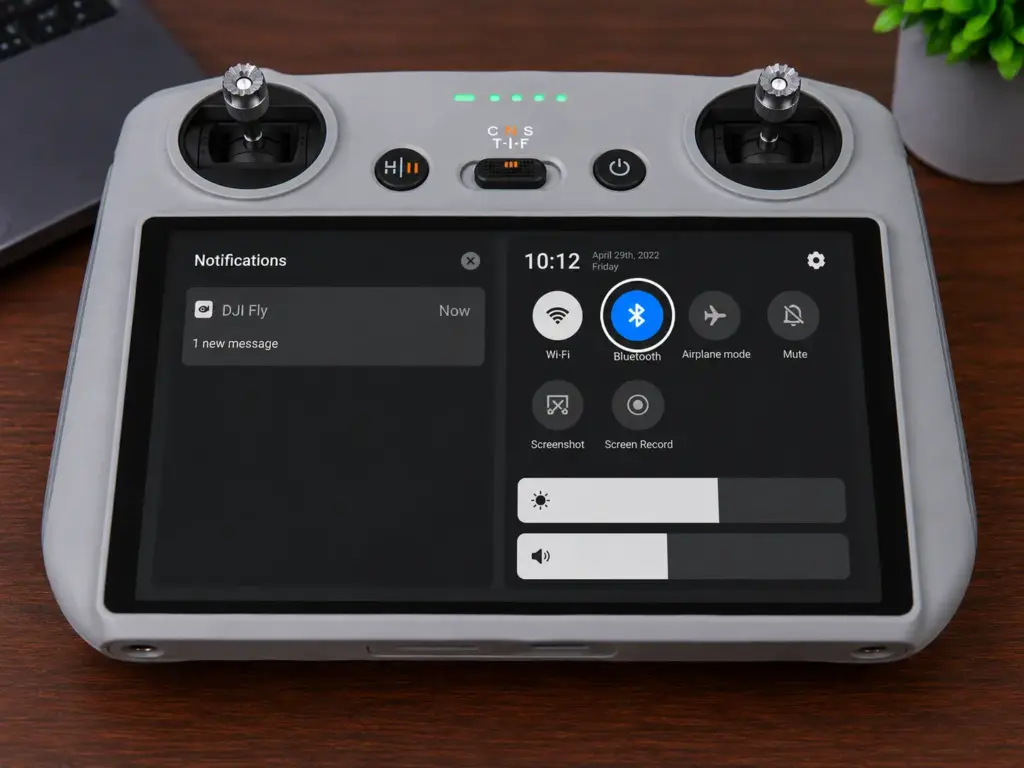
Well, technically yes.
But practically no, at least not when it comes to transferring huge files.
It is good for transferring small files such as small screenshots and photos, but you cannot use it for sending 4K drone video footage.
This will take too long. That is why I have not considered it as a way to transfer the media.
What Is the Right Option for You?
In case you want to transfer just a few photographs taken casually during your trip, you can use the DJI Fly app.
However, in case you have to work on a professional video, the SD card reader is the right choice that will help you spend less time.
For ordinary flights, the connection via the USB-C cable will suit you best.
A Few Things Every Drone Operator Needs to Remember
There is one lesson that I have learned through many years.
- Never believe in just one backup of your video files.
- Always make a backup copy before deleting any file.
- Always test the videos on your computer if they work fine.
- Only after that can you erase the memory card in your drone.
That is what has helped many drone operators avoid losing their important moments and projects.
Some Safety Tips While Transferring the Media
- Do not turn on the drone prior to extracting the SD card.
- Make use of genuine or quality memory cards.
- Avoid unplugging USB cables while transferring data.
- Ensure the SD card is protected against dust and moisture.
- Format the SD card within the drone only after backing up your files.
Recommended SD Cards
For reliable recording and fast transfers, choose UHS-I U3 or V30-rated microSD cards from trusted brands.
Recommended options include:
Capacity recommendations:
- 64 GB – Casual users
- 128 GB – Most pilots
- 256 GB – Professional creators
- 512 GB – Long recording sessions
Recommended USB-C Data Cables
Use a cable that supports both charging and data transfer.
Choose:
- USB-C 3.2 Gen 1
- USB-C 3.2 Gen 2
- USB-C to USB-A (for older computers)
- USB-C to USB-C (for modern laptops)
Avoid low-quality charging-only cables because they cannot transfer files.
Concluding Remarks
Drone flying isn’t everything.
Once you’ve managed to land and transfer drone photos and videos on your computer, the second half of the ride kicks in.
Regardless of whether you’ll be using a USB-C connection, an SD card reader, DJI Fly software, or Bluetooth, the principle remains the same.
Remember, every flight has a story to tell.
Frequently Asked Questions (FAQs)
1. Can I plug my DJI drone directly into my PC?
Yes, most new DJI drones allow direct USB-C file transfer to the computer.
2. Which way to transfer drone photos and videos is the quickest?
Detaching the microSD card and using the USB 3.0 card reader is usually the quickest way.
3. Can I copy files from the DJI RC 2 without taking out the SD card?
Yes, just plug your RC 2 into the computer via a USB-C data cable.
4. Does Bluetooth support 4K video transfer?
No, it is too slow for big video files.
5. Is it okay to delete files after transferring them?
Yes, but only after you make sure that the files open correctly on your computer or external drive.
6. Do I have to format the SD card on my computer?
No, it is preferable to do it inside the drone after copying the data.